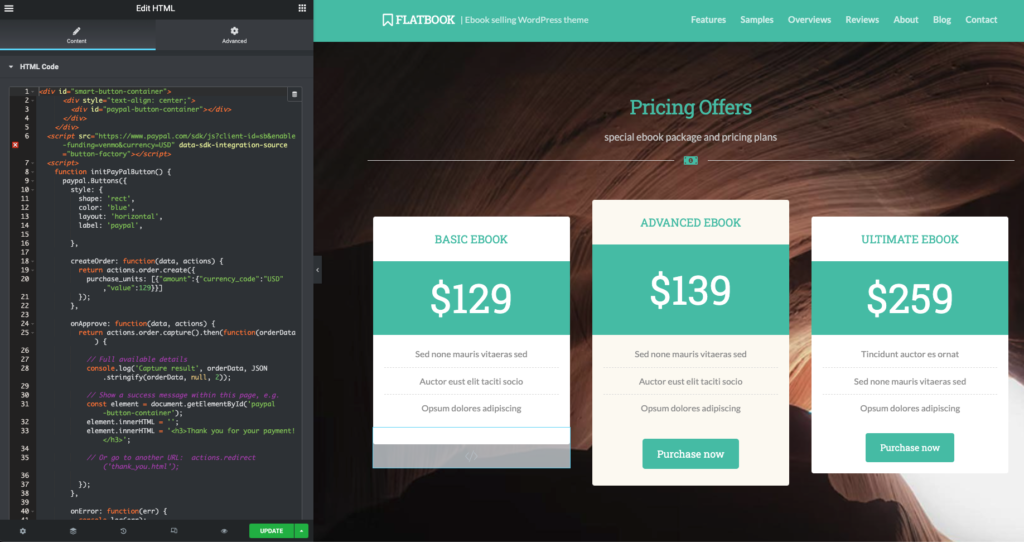
To setup a PayPal button for your pricing section, follow the steps below.
Create the button
- Create a PayPal account where you will receive the payments
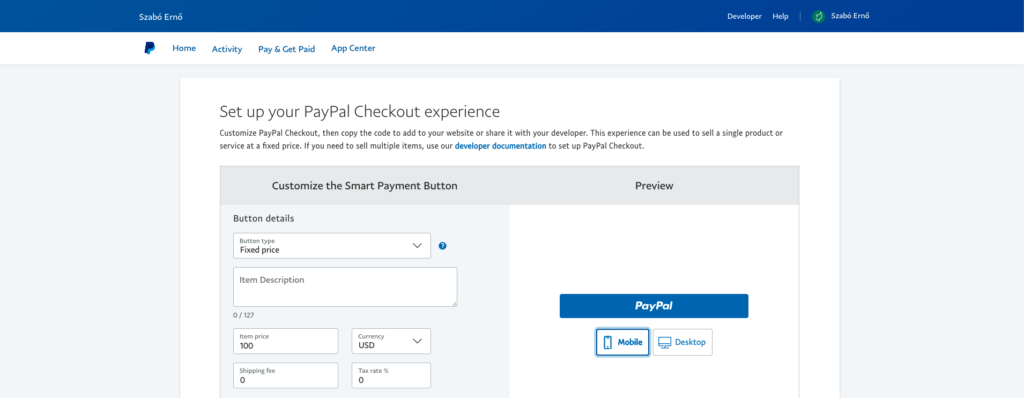
- Log in to your newly created account, and select Pay & Get Paid > PayPal Buttons from the menu
- Select Smart Buttons from the options, and set up the button details
- If you are ready, click on the Copy Code button
Insert with Elementor
- Go to the page where you have the pricing section, and click Edit with Elementor
- Insert a HTML widget (to the place where you have the Purchase button) and paste the copied code. Don’t worry if Elementor doesn’t render your PayPal button, it will look as expected later
- Copy the demo purchase button with right click and paste it’s style to the inserted HTML widget
- Delete the original purchase button, and hit Update to save the changes.
- Do the same process with the other pricing options (if you have).