If you need your theme to look exactly the same as in the live theme demo, you will need to import the demo contents and settings. For WordPress newbies, it is highly recommended to import the demo content, as it makes the customization process much more easier. It can be good starting ground when starting to customize your website.
Install demo importer
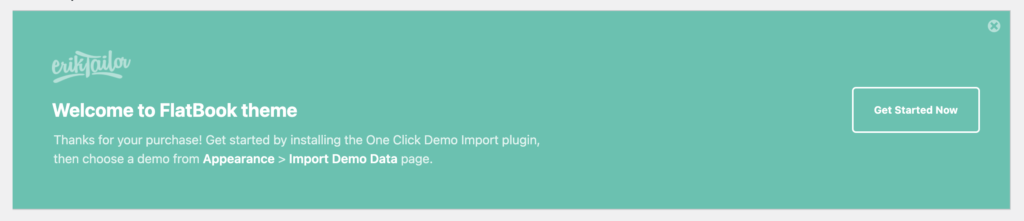
Go to the Dashboard page of your WordPress admin area, and at the top of the page, locate the welcome admin notice of FlatBook. Click on the Get Started Now button to install the One Click Demo Import plugin. Once the plugin is installed, click Activate.
Import demo content
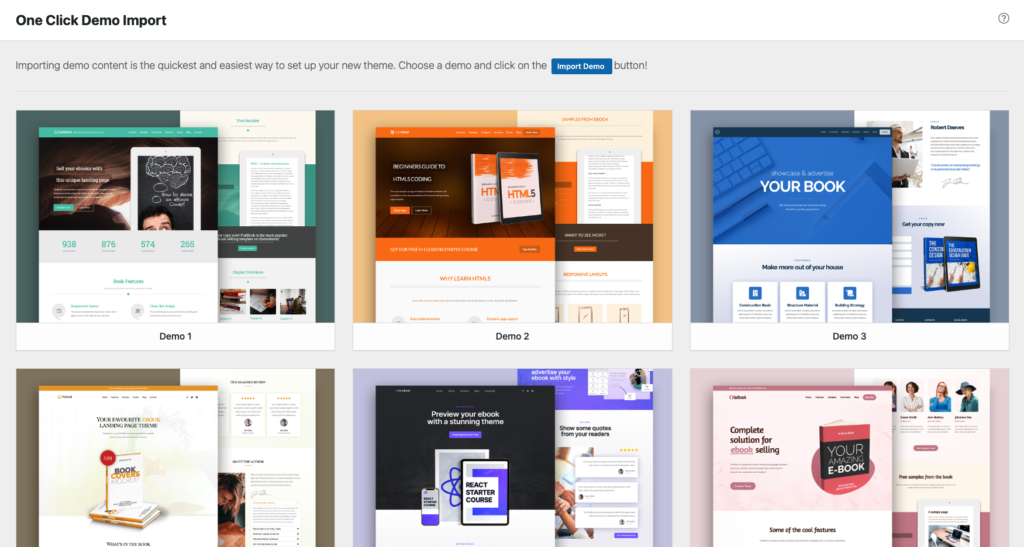
Navigate to Appearance » Import Demo Data, and click on the Import Demo button under your chosen demo version. Go through the required plugins installer (and select recommended plugins if you wish) and click the Continue & Import button, and wait until the importer finishes (it may take a while).
Required Plugins
- Advanced Custom Fields PRO – included premium plugin what adds custom fields to the theme
- Elementor Website Builder – the visual page builder solution for the theme (free version)
- Kirki Customizer Framework – the theme options framework in the live customizer
- One Click Demo Import – adds easily importable demo layouts to the theme
- FlatBook Elementor Widgets – custom plugin what adds new Elementor widgets
- FlatBook Recent Posts Widget – custom plugin what displays an enhanced Recent Posts widget
Recommended Plugins
- Contact Form 7 – it adds customizable contact forms to the website
- WooCommerce – the ultimate ecommerce solution which adds shop functionalities to the theme
