There are several ways to edit a page with Elementor. You can create your own content from scratch, however the recommended way for beginners, is to duplicate an existing element coming from the imported demo content, and customize it for your needs.
Enable Handles
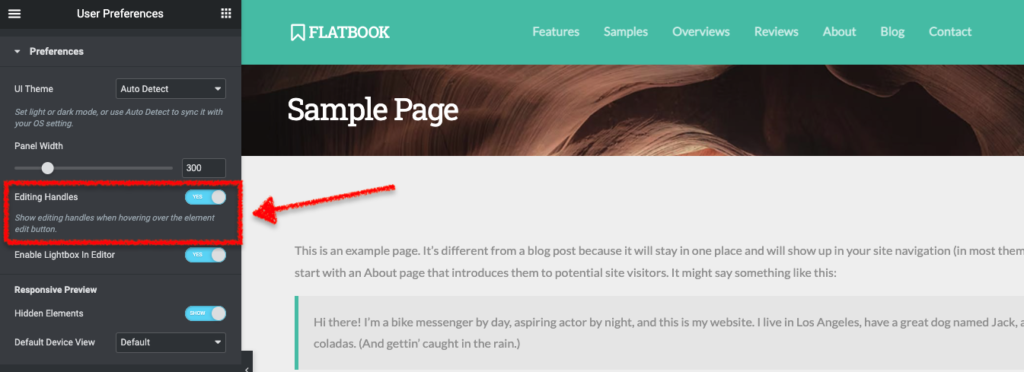
It isn’t required, but for the most easy usuage, you should enable editing handles.
- In the Elementor editor, click on the sidebar toggle icon at the top left of the page
- In the upcoming sidebar window, select the User Preferences tab
- Switch on the Editing Handles option and click on the Update button to save
Edit Elements
To edit an element, just click on it and customize the upcoming settings in the left sidebar, and click on the Update button to save the modifications and update the page.
Duplicate Elements
To create a copy of an element, hover over the edit icon in the top right, and hit the upcoming Duplicate icon (or just right click on the element and choose Duplicate).

Note: This method can be used with Elementor elements, columns, sections… basically everything.
