In this Customizer panel, you can customize everything related to the top navigation bar.
Layout
Customize the layout of the navigation bar.
- Enable navbar: show or hide the top navigation bar
- Navbar layout: choose which layout should be used for the top navigation




- Navbar width: sets the wrapper width of the navigation bar
- Navbar position: choose Fixed if you want the navbar to be sticked to top when scrolling
- Navbar height: sets the height of the navigation bar
- Mobile navbar height: sets the height of the navigation bar on mobile sizes
- Menu font size: sets the font size of the nav menu items
- Menu item spacing: sets the spacing between the nav menu items (for desktop view only)
Logo
Settings related to the logos in the navbar.
- Logo type: choose which logo type you want, text or image based
- Logo text: enter the text to be shown as the logo
- Typography: set the typography of the logo text
- Logo top spacing: set the top padding of the logo (only when navbar layout is centered)
- Logo image: upload the image you want to use as the logo
- Logo width: sets the size of the uploaded logo image
- Mobile logo: if you upload an image here, it will replace the original logo on mobile size
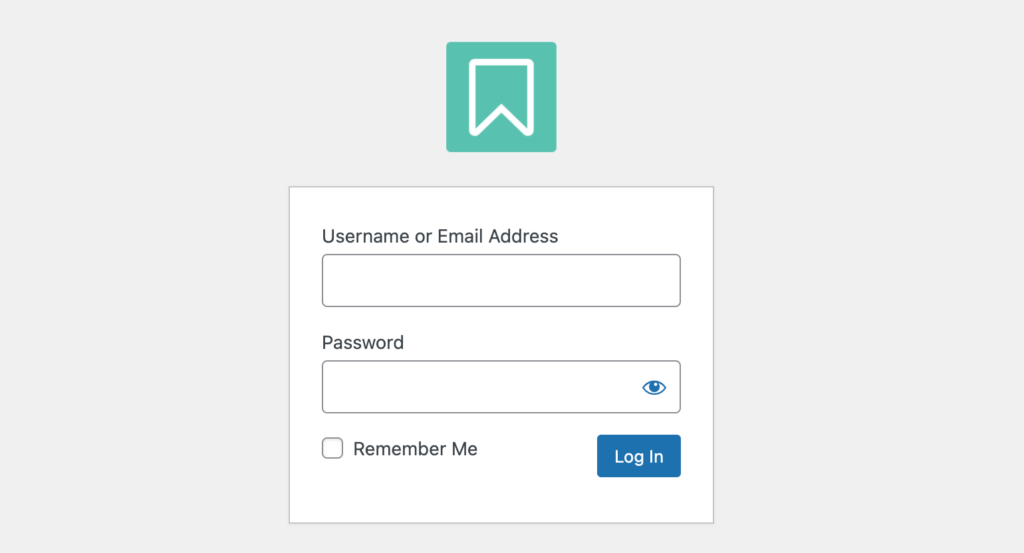
- Login logo: upload logo to show up on the WordPress admin login page
Tagline
Settings related to the tagline in the navigation bar.
- Show tagline: display the site tagline near the logo
- Tagline text: enter the text for the tagline, if it’s enabled

Button
Settings related to the menu button in the navigation bar.
- Enable button: show / hide a button at the end of the navigation menu. It will turn your last menu item to a button.
- Border radius: set border radius attribute of the navbar button

Note: the color options of the button can be found at Customizer > Navbar > Colors
Colors
Set the color of the elements from the Navbar panel.
- Navbar background color: set the background color of the navigation bar
- Menu link color: set the color of the menu links
- Menu link hover color: set the color of the menu links when hovered with the mouse
- Mobile menu toggle color: set the hamburger toggle icon color (on mobile sizes)

- Button background color: set the background color of the button in the navbar (if button is enabled)
- Button hover color: set the background color of the navbar button when hovered with the mouse
- Button label color: set the label text color of the navbar button (if button is enabled)
- Tagline color: set the navbar tagline text color (if tagline is enabled)
